Diagnosing Motherboard Issues: A Comprehensive Troubleshooting Guide
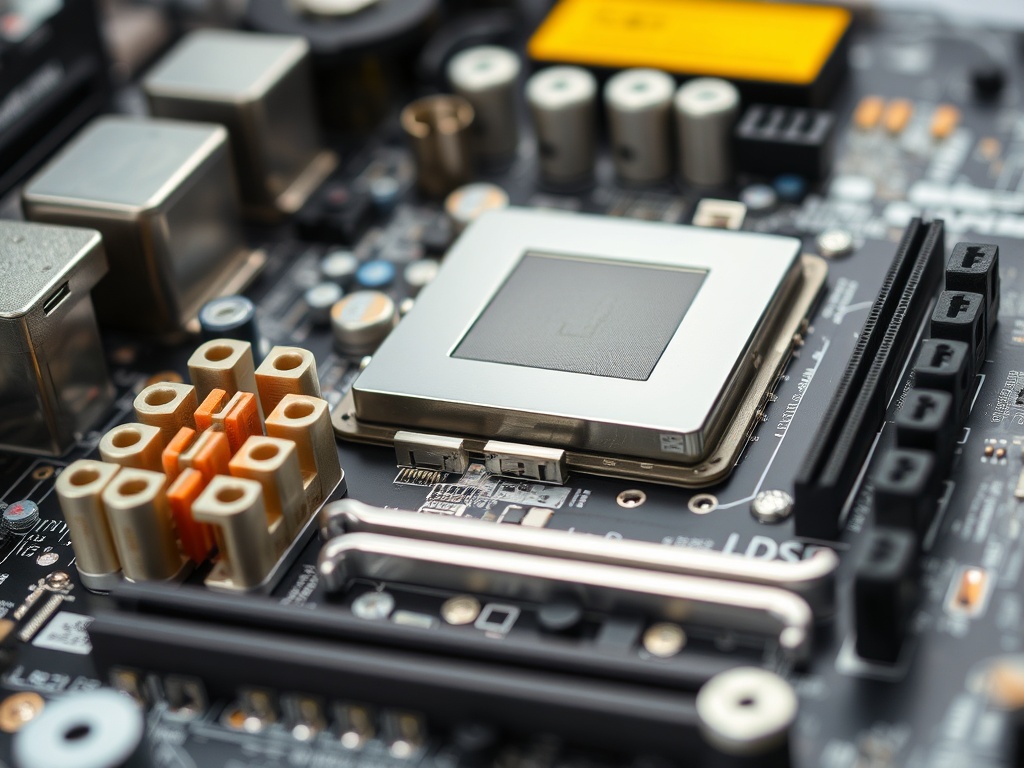
The motherboard serves as the backbone of your computer, connecting all critical components. When it encounters issues, the entire system’s performance can be compromised. Identifying and diagnosing these problems early can save you time and money, preventing further damage to your PC. In this guide, we’ll walk you through the process of diagnosing common motherboard issues, from recognising early signs to using advanced tools. Whether you’re a novice or a tech-savvy enthusiast, this article will provide the insights needed to resolve motherboard problems effectively.
Understanding the Role of the Motherboard
1. What is a Motherboard?
The motherboard is the main printed circuit board (PCB) in your computer, housing the CPU, RAM, storage, and other components. It facilitates communication between hardware, ensuring a seamless computing experience.2. Importance of a Healthy Motherboard
A faulty motherboard can lead to significant problems, such as system instability, reduced performance, or complete hardware failure. Maintaining its health is crucial for a well-functioning PC.Signs of Motherboard Issues
1. System Won’t Power On
A complete lack of power can indicate motherboard problems, particularly if the power supply and other components are functioning properly.2. Random Freezing or Crashes
Frequent crashes or freezing may point to motherboard instability or failing capacitors.3. No Display or Boot Failure
A blank screen during boot-up often suggests issues with the motherboard or its connected components.Common Causes of Motherboard Problems
1. Electrical Surges
Power surges can damage the motherboard’s delicate circuitry. Using a surge protector is essential for prevention.2. Physical Damage
Dropped or mishandled computers can lead to cracks or dislodged components on the motherboard.3. Overheating
Excessive heat can warp the motherboard and cause solder joints to fail.How to Diagnose Common Motherboard Issues
1. Initial Visual Inspection
- Look for physical damage, such as burnt spots or swollen capacitors.
- Check for loose connections and ensure all components are seated correctly.
2. Testing Power Supply Connections
- Verify that the PSU is supplying power to the motherboard.
- Use a multimeter to test the voltage output of the PSU.
3. Checking for Beep Codes and Error Lights
- Refer to the motherboard manual for the meaning of specific beep codes or LED indicators.
- Use these signals to identify failing components.
4. Testing Connected Components
- Remove non-essential peripherals and test with minimal hardware.
- Swap out components like RAM, GPU, and CPU to isolate the issue.
5. BIOS and Firmware Troubleshooting
- Reset the BIOS by clearing the CMOS using a jumper or removing the battery.
- Update the motherboard firmware to the latest version.

