DIY Hard Drive Data Recovery: Tips and Tools You Should Know
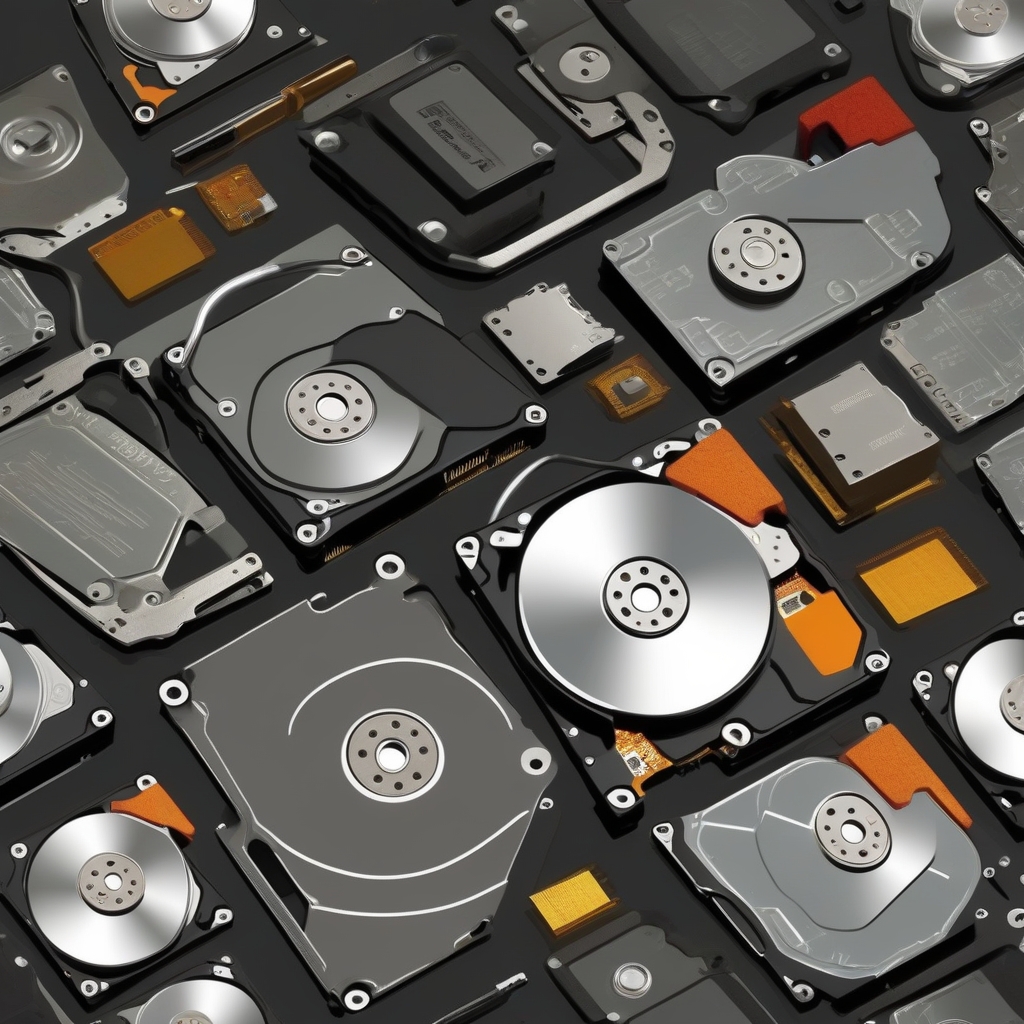
Hard drive failure is a common cause of data loss, but the good news is that not all hope is lost when it happens. With the right tools and techniques, you can often recover data from a damaged or corrupted hard drive yourself. This DIY guide is designed to help you understand the data recovery process, from assessing the issue to using the best software and tools for the job. In this article, we’ll dive into the causes of hard drive failure, how to determine if DIY recovery is a feasible option, and the most effective methods for recovering your valuable files. Whether you’re dealing with a corrupted hard drive, accidental deletion, or an unresponsive drive, we’ll show you how to get your data back without the need for expensive professional services.
Understanding Hard Drive Data Loss
1. Common Causes of Data Loss
Data loss can occur for a variety of reasons, and understanding the cause can help guide your recovery efforts. Some of the most common causes include:- Accidental Deletion: Sometimes files are deleted by accident, and users realise too late that they need to recover them.
- Logical Failures: These occur when the file system or software is corrupted, but the physical components of the drive are still intact.
- Physical Damage: Hard drives can be damaged by external forces, such as dropping, overheating, or water exposure. In this case, recovery can be more complex.
- Malware and Viruses: Malicious software can corrupt or destroy files, leaving the drive inaccessible.
2. Types of Hard Drive Damage
Hard drive damage falls into two categories: physical damage and logical damage.- Physical Damage: This happens when the hard drive’s internal components (e.g., motor, read/write head, platters) fail. This type of damage often requires professional repair or data recovery services.
- Logical Damage: This refers to problems with the data or file system, such as corruption, bad sectors, or file system errors. Logical damage is often easier to recover from using DIY methods and software.
How to Assess If DIY Recovery Is Possible
1. Signs of Logical vs. Physical Damage
To determine if DIY recovery is possible, it’s crucial to distinguish between logical and physical damage.- Logical Damage: If the drive is still spinning, making no unusual noises, and the system recognises it but files are inaccessible, this is likely logical damage.
- Physical Damage: If the drive makes unusual sounds (clicking or grinding), doesn’t spin up, or is physically damaged (e.g., dropped, exposed to water), it’s best to seek professional help for data recovery.
2. When to Seek Professional Help
If your hard drive has suffered physical damage or the DIY recovery methods aren’t working, it’s time to contact a data recovery professional. They have the specialised tools and expertise to recover data from physically damaged drives.Essential Tools for DIY Hard Drive Data Recovery
1. Data Recovery Software
Data recovery software is essential for DIY recovery, especially when dealing with logical damage. Some popular options include:- Recuva: A free and user-friendly tool for recovering deleted files from hard drives, USBs, and memory cards.
- EaseUS Data Recovery Wizard: A paid software offering a free trial that supports advanced data recovery for all file types and storage devices.
- R-Studio: Professional-grade software with powerful features for recovering data from damaged and corrupted drives.
2. Hardware Tools for Recovery
If you’re dealing with physical damage, hardware tools might be required. This can include:- USB-to-SATA/IDE adapters: These allow you to connect your damaged hard drive to a working computer as an external drive.
- External Enclosures: These are used to house a damaged drive, making it easier to connect to another computer for data recovery.
3. Preparing Your Setup for Recovery
Before beginning the recovery process, ensure your setup is ready:- Backup your system: If you’re attempting recovery on a secondary drive or partition, back up your data first.
- Clean Workspace: Avoid any distractions or interference from external devices.
- Storage Location: Ensure you have enough storage to save the recovered data to a new, healthy drive.

