What to Do When Your Hard Drive Asks to Format?
Hard drive asks to format? Discover why this happens and how to fix it without losing data. Explore recovery methods to regain access to your files.
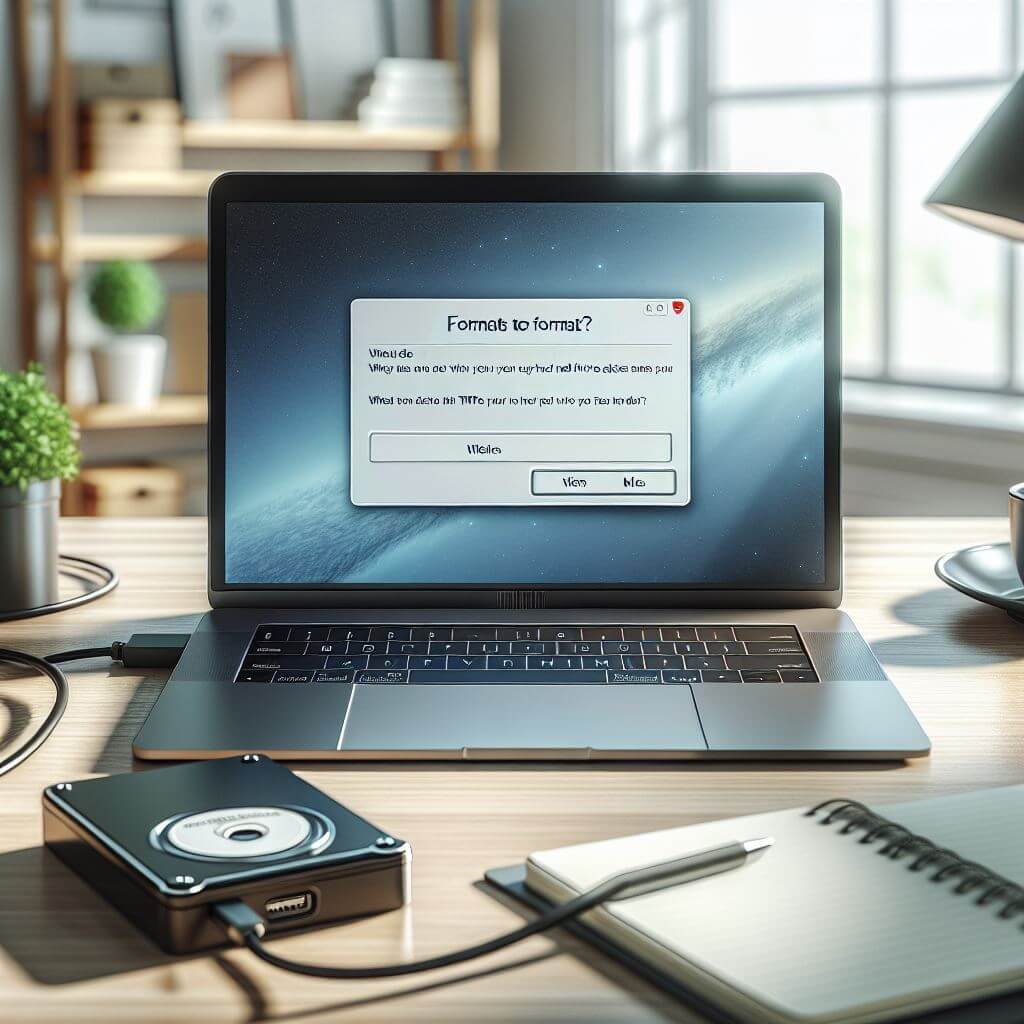
Introduction: Why Your Hard Drive Asks to Format
A sudden prompt to format your hard drive can be frustrating, especially if you weren’t expecting it. You connect your external hard drive or boot up your computer, and suddenly the message appears: “You need to format the disk before you can use it.” This situation is commonly referred to as the "hard drive asks to format" issue, and it often leaves users unsure of what to do next. This problem can arise due to various causes, from file system corruption to hardware issues. However, before you give in to the prompt and format your drive—losing all of your files—there are steps you can take to resolve the issue and recover your data. In this post, we’ll explore why your hard drive asks to format, discuss possible causes, and explain how you can fix the problem without having to format your drive.Common Causes of the Format Request
Several factors can cause a hard drive or USB drive to ask for formatting. Understanding the root cause of the problem can help you address it more effectively:- File System Corruption: This is a leading cause. Corruption can happen due to sudden power loss, improper ejection of the drive, or malware.
- Bad Sectors: If parts of the disk are physically damaged, the system may read the drive as unformatted.
- Virus or Malware: Malware can cause logical errors, corrupting the file system and prompting a format request.
- Connection Issues: A loose or faulty connection between the drive and the computer can lead to data reading errors.
- Outdated or Corrupt Drivers: If your operating system cannot recognise the drive due to driver issues, it may ask you to format it.
- Operating System Bugs: Sometimes, the problem lies within the operating system itself, incorrectly interpreting the drive’s file system.
Is Formatting the Only Option?
When your system prompts you to format the hard drive, it might seem like the only way forward. However, formatting the drive should be your last option. Formatting will erase all data on the drive, making it much harder to recover your files. Fortunately, there are methods to fix "hard drive asks to format" without losing any data. Let’s look at the solutions available.How to Fix "Hard Drive Asks to Format" Without Data Loss
Instead of immediately formatting the drive, try these steps to fix the issue and potentially recover your data.Method 1: Check for File System Errors
The first method is to check for file system errors. If the problem is caused by file system corruption, Windows offers built-in tools to help you repair it.- Connect your hard drive to the computer.
- Open This PC, right-click the affected drive, and select Properties.
- Under the Tools tab, click Check under the Error-checking section.
- Follow the on-screen instructions to let Windows scan and repair the drive.
Method 2: Use Data Recovery Software
If file system error-checking doesn’t solve the issue, you may need data recovery software. However, be cautious—many recovery tools on the market are limited in their capabilities, and even paid versions may not deliver the results you expect. Instead of relying on generic recovery software, it’s best to seek professional help. Services like Perth Computer Experts can offer expert data recovery solutions, ensuring your files are safely retrieved without risking further damage to the drive.Method 3: Connect to Another Computer
Sometimes, the problem is specific to your computer. To rule this out, try connecting the external drive asking to format to a different computer. If the drive works on another system, the issue may be with your computer’s drivers or operating system.Method 4: Update Device Drivers
Another possible cause is outdated or faulty device drivers. Here’s how you can update them:- Press Windows + X and choose Device Manager.
- Expand the Disk drives section, then right-click on the affected drive.
- Select Update driver and follow the prompts.
Prevent Your Hard Drive from Asking to Format
Prevention is crucial to avoid future issues with your hard drive. Here are some tips:- Safely Eject Drives: Always use the "Safely Remove Hardware" feature before disconnecting any external drive.
- Regular Disk Checks: Perform regular disk checks to detect and repair any issues early.
- Use Quality Cables: Ensure you’re using high-quality cables to connect your external drives.
- Protect Against Power Surges: Use surge protectors or uninterruptible power supplies (UPS) to safeguard your drives.
- Install Antivirus Software: Prevent malware from corrupting your drives by using reputable antivirus software.

